Choosing the right bitrate in OBS is the single biggest factor in how your stream looks. Set it too low and viewers see a pixelated, blocky mess; set it too high and anyone with a slower connection buffers constantly or gets rejected by the platform's cap.
This guide covers the optimal bitrate settings for every major streaming platform and resolution in 2026, plus the encoder, keyframe, and audio choices that go with them. For the full settings map, start with the OBS settings hub. Prefer a questionnaire? Use the free Setup Wizard and read OBS Setup Wizard: recommended settings.
Quick Answer
For most streamers, 1080p 60fps at 6,000 Kbps CBR with a 2-second keyframe interval is the safe, high-quality baseline — it maxes out Twitch, sits comfortably under Kick's ceiling, and looks great on YouTube. Scale bitrate up for higher resolutions on YouTube, and down if your upload speed is limited.Understanding Bitrate: The Basics
Bitrate is the amount of data your stream sends per second, measured in kilobits per second (Kbps). More data generally means better quality — but only up to a point. Beyond a resolution's sweet spot, extra bitrate delivers diminishing returns while risking dropped frames and viewer buffering.The right number depends on three things: your resolution, your frame rate, and your encoder (x264 on the CPU vs NVENC on the GPU). Fast-motion games like shooters and racing titles need more bitrate to stay clean, while slow, static scenes such as Just Chatting or card games look sharp at far less. That's why "best bitrate" is always a range, not a single magic value.
Recommended OBS Bitrate Settings by Platform
Twitch Bitrate Settings
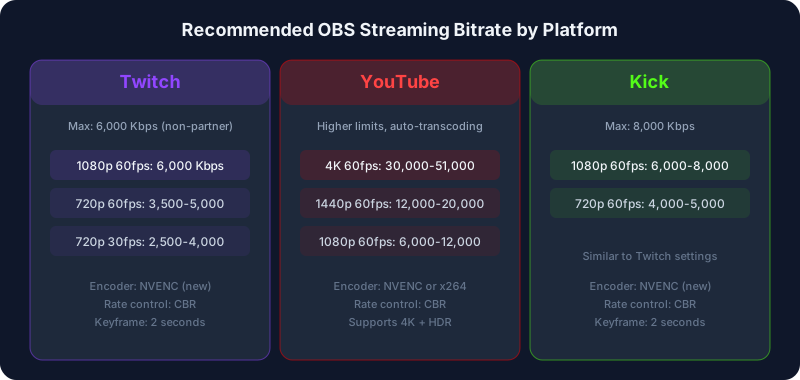
Twitch caps non-partnered streamers at about 6,000 Kbps for video. Partners can push toward 8,000 Kbps, but there's rarely a reason to — Twitch's transcoding servers create the lower-quality options viewers actually watch on. Recommended targets:- 720p 30fps: 2,500–4,000 Kbps — fast-paced games on slower connections
- 720p 60fps: 3,500–5,000 Kbps — a strong balance for competitive play
- 1080p 30fps: 4,500–6,000 Kbps — ideal for slow-paced content like Just Chatting and tutorials
- 1080p 60fps: 6,000 Kbps — the sweet spot for most Twitch streamers
Use NVENC (New) if you have an RTX GPU, or x264 Medium if your CPU has headroom. Both deliver comparable live quality at the same bitrate; see our NVENC vs x264 comparison to pick.
YouTube Live Bitrate Settings
YouTube is far more generous and transcodes for every streamer, so a higher source bitrate makes every downscaled quality level look better. Recommended targets:- 1080p 30fps: 4,500–9,000 Kbps
- 1080p 60fps: 6,000–12,000 Kbps
- 1440p 30fps: 10,000–15,000 Kbps
- 1440p 60fps: 12,000–20,000 Kbps
- 4K 30fps: 20,000–35,000 Kbps
- 4K 60fps: 30,000–51,000 Kbps
Because YouTube re-encodes into multiple ladders, feeding it more data pays off in a way it doesn't on Twitch. If you're chasing sharp 1440p or 4K, this is the platform to do it on.
Kick Bitrate Settings
Kick allows up to about 8,000 Kbps for most streamers, so its numbers land between Twitch and YouTube:
- 1080p 60fps: 6,000–8,000 Kbps — optimal for most Kick streamers
- 720p 60fps: 4,000–5,000 Kbps — for limited upload speeds
Rate Control and Keyframe Interval
Two settings matter almost as much as the bitrate itself:
- Rate Control: CBR. Constant bitrate is what Twitch, YouTube, and Kick expect for live. It keeps your data rate steady so the platform's servers and your viewers' players stay in sync. Variable bitrate is great for local recording but risky for live ingest.
- Keyframe Interval: 2 seconds. Every major platform requires (or strongly prefers) a 2-second keyframe interval. Leaving it on "auto" is a common cause of rejected streams and playback glitches, so set it explicitly.
Codec Selection: x264 vs NVENC vs AV1
Your encoder decides how much quality you extract from each Kbps:
- x264 (CPU): Best quality per bitrate at Medium/Slow presets, but demanding on the processor. Best on a dedicated streaming PC.
- NVENC (GPU): Excellent quality with minimal performance impact. RTX 40-series and newer rival x264 Medium. The default choice for single-PC setups.
- AV1 (GPU): Available on RTX 40-series and Intel Arc. Roughly 30% more efficient than H.264, so it shines when you're bitrate-limited. Confirm current support before switching in our codec comparison.
How to Calculate Your Maximum Bitrate
Your upload speed sets your ceiling. The rule of thumb: keep stream bitrate at or below 75% of your upload speed, leaving headroom for other traffic and avoiding buffering and dropped frames.
For example, a 10 Mbps (10,000 Kbps) upload supports roughly a 7,500 Kbps stream. Plug your numbers into the Bandwidth Calculator to see exactly what your connection can carry, or run the setup wizard for a guided recommendation.
Audio Bitrate Settings
Don't neglect audio — it's added on top of your video bitrate:
- 128 Kbps: Minimum acceptable for voice and casual streams
- 160 Kbps: A good balance for most content
- 320 Kbps: Best quality, ideal for music streams
Use the AAC codec at a 48 kHz sample rate. A 6,000 Kbps video stream plus 160 Kbps audio totals about 6,160 Kbps, so account for it when sizing your upload.
Troubleshooting Common Bitrate Issues
Dropped Frames
Dropped frames mean your bitrate exceeds what your network can push. Lower it in 500–1,000 Kbps steps until they stop, and check whether other devices are hogging bandwidth. See our full dropped frames fix.
Pixelation During Fast Motion
If the stream looks clean when static but blocky during action, either raise the bitrate or drop the resolution — fast motion simply needs more data to encode cleanly.
Buffering for Viewers
If viewers report buffering, your bitrate may be too high for their connections. On Twitch, staying at or under 6,000 Kbps keeps most viewers smooth; on YouTube, transcoding handles it automatically.
Quick Reference Table
| Use Case | Resolution | FPS | Bitrate Range |
| Twitch (most streamers) | 1080p | 60 | 6,000 Kbps |
| YouTube Gaming | 1080p | 60 | 6,000–12,000 Kbps |
| YouTube (high quality) | 1440p | 60 | 12,000–20,000 Kbps |
| 4K Streaming | 4K | 30 | 20,000–35,000 Kbps |
| Low bandwidth | 720p | 30 | 2,500–4,000 Kbps |
Bottom Line
Start at the 1080p 60fps / 6,000 Kbps CBR baseline with a 2-second keyframe interval, then adjust: push bitrate up for 1440p and 4K on YouTube, and pull it down if your upload can't keep 75% headroom. For exact file-size math, use our 1080p 60fps calculator or 4K 30fps calculator.