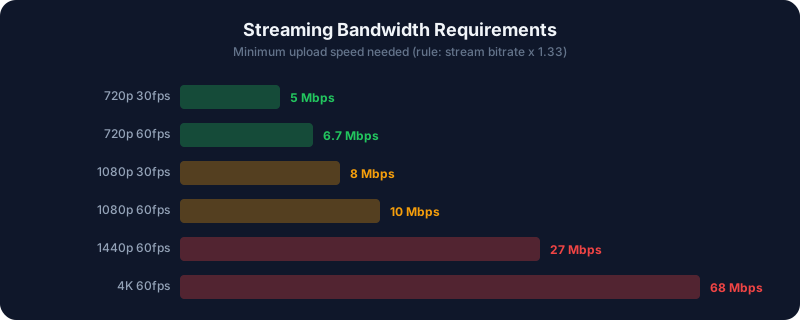
Your internet upload speed sets the ceiling on your live stream's quality. Push a bitrate higher than your connection can sustain and you get dropped frames, buffering, and a poor viewer experience.
This guide covers the exact upload speed you need for live streaming at every quality level on every major platform, along with the math to work it out for yourself.
Quick Answer
Your stream bitrate should never exceed about 75% of your measured upload speed. For a stable 1080p60 stream at 6,000 Kbps, that means roughly 10 Mbps of reliable upload; for 4K on YouTube, plan for 50 Mbps or more.The Golden Rule: Bitrate vs Upload Speed
Bitrate is measured in kilobits per second (Kbps) and upload speed in megabits per second (Mbps). To compare them, remember 1 Mbps = 1,000 Kbps. Your total stream bitrate is your video bitrate plus audio (usually 128–320 Kbps) plus a little protocol overhead.
The safe formula is:
Maximum stream bitrate = Upload speed × 0.75The 25% buffer absorbs network overhead, other devices on your connection, and normal fluctuation. Worked examples:
- 10 Mbps upload → about 7,500 Kbps of headroom for the stream
- 20 Mbps upload → about 15,000 Kbps
- 50 Mbps upload → about 37,500 Kbps
If your connection is shared with a household, be more conservative and leave even more room. You can check any combination against your line using the bandwidth calculator.
Minimum Upload Speed by Stream Quality
| Stream Quality | Video Bitrate | Minimum Upload | Recommended Upload |
| 720p 30fps | 2,500–4,000 Kbps | 5 Mbps | 8+ Mbps |
| 720p 60fps | 3,500–5,000 Kbps | 7 Mbps | 10+ Mbps |
| 1080p 30fps | 4,500–6,000 Kbps | 8 Mbps | 12+ Mbps |
| 1080p 60fps | 6,000–8,000 Kbps | 10 Mbps | 15+ Mbps |
| 1440p 60fps | 10,000–15,000 Kbps | 20 Mbps | 25+ Mbps |
| 4K 30fps | 20,000–35,000 Kbps | 35 Mbps | 50+ Mbps |
| 4K 60fps | 30,000–50,000 Kbps | 50 Mbps | 75+ Mbps |
Platform-Specific Requirements
Twitch
Twitch caps non-partner video bitrate at around 6,000 Kbps and recommends constant bitrate (CBR) with a 2-second keyframe interval. That makes 6,000 Kbps the practical sweet spot for 1080p60, requiring at least 10 Mbps upload for reliability. Partners with transcoding access can push toward 8,000 Kbps. See the Twitch platform page for the full recommended settings.
YouTube Live
YouTube is far more generous and transcodes for every streamer. It recommends roughly 6,000–12,000 Kbps for 1080p60, 10,000–20,000 Kbps for 1440p, and 20,000–51,000 Kbps for 4K. For 4K you'll want at least 50 Mbps upload; for 1080p60, 15 Mbps is comfortable. Details live on the YouTube platform page.
Kick
Kick allows up to around 8,000 Kbps for most streamers, so requirements land close to Twitch. Budget at least 12 Mbps upload for a clean 1080p60 stream with headroom.
Facebook's live streaming targets more modest bitrates, commonly 4,000–6,000 Kbps for 1080p. A reliable 8–10 Mbps upload covers it comfortably.
Understanding CBR and Overhead
Live platforms prefer constant bitrate (CBR) because it produces a predictable, steady data stream that is easy to ingest and buffer. That is why your upload connection needs to sustain the full bitrate continuously, not just on average. Variable bitrate (VBR) can spike above its target during complex scenes and blow past your headroom. If the difference matters to your setup, the CBR glossary entry explains it in depth.
Overhead is the reason bandwidth requirements are always higher than the raw bitrate. When your encoder sends video, the RTMP or SRT protocol wraps every chunk in packet headers, and TCP-based ingest re-sends anything that gets lost in transit. In practice, that adds roughly 5–10% on top of your combined video and audio bitrate. A "6,000 Kbps" Twitch stream really needs closer to 6,500 Kbps of sustained upload once audio and overhead are counted, which is exactly why the 75% headroom rule exists rather than a naive 1:1 comparison.
Don't Forget Audio and Background Traffic
Your total upload budget is not just the video figure in the tables above. Add your audio track (128 Kbps for stereo voice, up to 320 Kbps for music-heavy streams), any second audio track, and everything else your PC uploads while live: cloud sync, game telemetry, voice-chat apps, and other household devices. Pausing large uploads and cloud backups before you go live is one of the simplest ways to reclaim headroom without spending a cent.
How to Test Your Upload Speed
Use a speed test such as speedtest.net or fast.com to measure your upload speed. Run it several times across different hours, because upload can sag during peak evening usage. Plan around your lowest result, not the best one.
Just as important: test over a wired Ethernet connection, not WiFi. WiFi adds latency spikes and inconsistent throughput that translate directly into dropped frames while you stream.
What If Your Upload Speed Is Too Low?
- Lower the resolution. Dropping from 1080p to 720p roughly halves the bitrate requirement while still looking sharp on most screens.
- Lower the frame rate. Switching 60fps to 30fps cuts the required bitrate significantly and barely hurts talking-head or creative content.
- Use a more efficient codec. HEVC or AV1 delivers similar quality at 30–50% less bitrate than H.264. Compare them on the codec comparison page.
- Upgrade to symmetric fiber. If streaming is central to what you do, a fiber connection with matching upload and download speed is the best long-term fix.
Bottom Line
Measure your real upload speed, multiply by 0.75, and keep your total stream bitrate under that ceiling. For most creators that means 1080p60 at 6,000 Kbps on Twitch or Kick, which a stable 10–15 Mbps connection handles easily. Only YouTube 4K genuinely demands a 50 Mbps-plus line.
Confirm what your connection supports with the bandwidth calculator, or dig deeper into speed headroom in best internet speed for streaming.