A one-hour 4K 60fps recording can easily exceed 50 GB. Uploading, storing, and sharing files that large is painful. The good news: you can dramatically reduce video file size with little to no visible quality loss — if you know which settings to change.
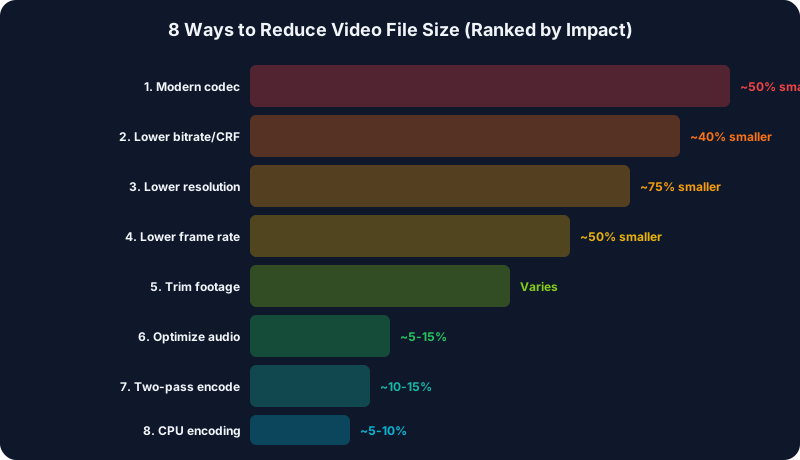
Here are 8 proven methods, ranked from most to least impactful.
1. Switch to a More Efficient Codec
This is the single biggest win. Modern codecs compress video dramatically better than older ones at the same visual quality:
| Codec | Efficiency vs H.264 | File Size for 1hr 1080p 60fps |
| H.264 | Baseline | ~5.4 GB |
| HEVC (H.265) | ~40% smaller | ~3.2 GB |
| AV1 | ~50% smaller | ~2.7 GB |
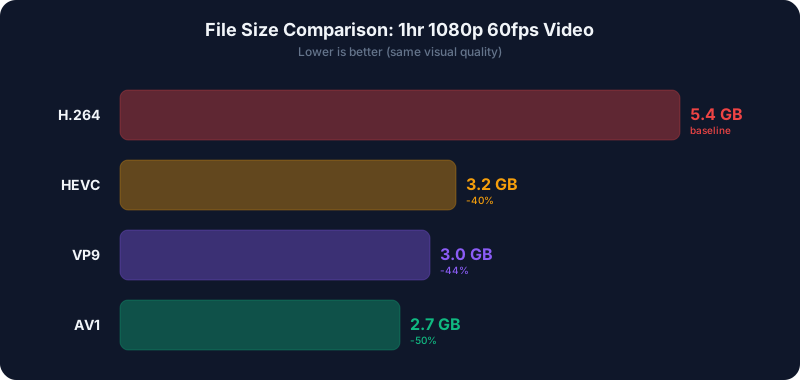
Switching from H.264 to HEVC can cut your file size nearly in half with no visible quality difference. AV1 saves even more but requires newer hardware for fast encoding.
For exact numbers for your resolution and codec, use our Bitrate Calculator.
How to do it:- OBS: Change encoder to HEVC (NVENC) or AV1 (NVENC) in Settings → Output
- HandBrake: Select H.265 (x265) or AV1 (SVT-AV1) codec
- FFmpeg: Use `-c:v libx265` or `-c:v libsvtav1`
Read our detailed H.264 vs H.265 vs AV1 comparison for more.
2. Lower the Bitrate (Use CRF/CQP)
Instead of using a fixed high bitrate, let the encoder decide how much data each scene needs:
- CRF 18: Visually lossless — most people can't tell the difference from the original
- CRF 23: Good quality, significantly smaller files (default in most tools)
- CRF 28: Noticeable quality loss but very small files
Every +6 CRF roughly halves the file size. Going from CRF 18 to CRF 24 cuts the file by ~75% with quality loss that most viewers won't notice on a stream or YouTube upload.
FFmpeg example:`ffmpeg -i input.mp4 -c:v libx265 -crf 23 -preset medium output.mp4`
3. Reduce Resolution (If Appropriate)
If your content doesn't require 4K, downscaling saves enormous amounts of data:
- 4K → 1080p: ~75% smaller files
- 1440p → 1080p: ~55% smaller files
- 1080p → 720p: ~55% smaller files
Most YouTube viewers watch on phones where 1080p is indistinguishable from 4K. For streaming on Twitch, 1080p 60fps is the standard — 4K streaming is unnecessary since Twitch doesn't support it anyway.
Use our file size calculator to compare sizes across resolutions.
4. Lower the Frame Rate
Dropping from 60fps to 30fps cuts file size roughly in half:
| Frame Rate | Relative Size |
| 120 fps | 4x |
| 60 fps | 2x |
| 30 fps | 1x (baseline) |
| 24 fps | 0.8x |
5. Trim Unnecessary Footage
The most obvious but often overlooked method. Cutting dead air, pauses, and irrelevant sections before exporting reduces file size proportionally:
- A 2-hour stream trimmed to 20 minutes of highlights = 83% reduction
- Remove pre-stream and post-stream dead time
- Cut loading screens and waiting periods
6. Optimize Audio
Audio is typically 5-15% of total file size, but it adds up:
- 320 Kbps stereo → 128 Kbps stereo: Saves ~1.4 GB per 10 hours of video
- Stereo → Mono: Halves audio size (fine for voice-only content)
- 48kHz → 44.1kHz: Small saving, no audible difference for non-music content
For most content, 128–160 Kbps AAC stereo is the sweet spot between quality and size.
7. Use Two-Pass Encoding
Two-pass encoding analyzes your video first, then compresses it with full knowledge of which scenes need more data. This produces better quality at the same file size compared to single-pass:
- Pass 1: Encoder analyzes the entire video
- Pass 2: Encoder distributes bits optimally
The downside is it takes twice as long. For long recordings, this may not be worth the time, but for important uploads it can squeeze an extra 10-15% better quality from the same file size.
8. Use Hardware Acceleration Wisely
GPU encoding (NVENC, QSV, AMF) is fast but slightly less efficient than CPU encoding:
| Encoder | Speed | Quality per Bitrate | CPU Usage |
| x265 (CPU) | Slow | Best | High |
| NVENC HEVC (GPU) | Fast | Very Good | Minimal |
| SVT-AV1 (CPU) | Medium | Excellent | High |
| QSV HEVC (Intel GPU) | Fast | Good | Minimal |
Recommended Workflows
For YouTube Uploads
1. Record in HEVC or AV1 at CQP 18-20
2. Edit your video
3. Export with H.265, CRF 18, medium preset
4. Result: High quality, reasonable file size
Estimate upload time with our Upload Time Calculator.
For Archiving Stream VODs
1. Record stream at CQP 20 (NVENC HEVC)
2. After stream, re-encode with x265 CRF 23 slow preset
3. Result: ~60-70% smaller than the original recording
Check storage requirements with our Recording Time Calculator.
For Sharing Clips on Discord/Social
1. Trim to the relevant clip
2. Encode with H.264 (widest compatibility), CRF 23
3. Cap resolution at 1080p
4. Result: Small files that play everywhere
Quick Reference: Expected File Sizes
For a 1-hour video at common settings:
| Settings | File Size |
| 4K 60fps H.264 | ~50 GB |
| 4K 60fps HEVC | ~30 GB |
| 1080p 60fps H.264 | ~5.4 GB |
| 1080p 60fps HEVC | ~3.2 GB |
| 1080p 30fps HEVC | ~1.6 GB |
| 720p 30fps HEVC | ~0.8 GB |
Summary
The biggest wins come from: (1) using a modern codec like HEVC or AV1, (2) using quality-based encoding (CRF/CQP) instead of fixed bitrate, and (3) not recording at higher resolution or frame rate than you need. Combine all three and you can easily reduce file sizes by 70-80% with no visible quality loss.