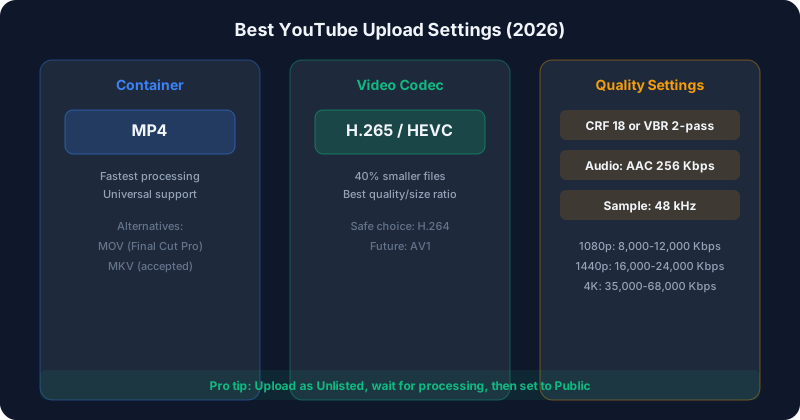
YouTube re-encodes every video you upload. That means your source file quality directly affects the final quality viewers see — upload a poorly compressed file, and YouTube's re-encoding makes it even worse. Here's exactly what format and settings to use for the best results.
YouTube's Recommended Upload Format
YouTube officially recommends:
- Container: MP4
- Video Codec: H.264 (most compatible) or H.265/VP9 (better quality)
- Audio Codec: AAC-LC
- Frame rate: Match your source (24, 25, 30, 48, 50, 60 fps)
- Color space: BT.709
While YouTube accepts almost any format (MOV, AVI, MKV, WebM, and more), MP4 with H.264 processes fastest and has the fewest issues. If you want maximum quality, MP4 with H.265 is the better choice in 2026.
Recommended Resolution and Bitrate
YouTube supports resolutions from 240p to 8K. Here are the recommended upload bitrates:
SDR (Standard Dynamic Range)
| Resolution | Frame Rate | Recommended Bitrate |
| 1080p | 30 fps | 8,000 Kbps |
| 1080p | 60 fps | 12,000 Kbps |
| 1440p | 30 fps | 16,000 Kbps |
| 1440p | 60 fps | 24,000 Kbps |
| 4K | 30 fps | 35,000–45,000 Kbps |
| 4K | 60 fps | 53,000–68,000 Kbps |
HDR
| Resolution | Frame Rate | Recommended Bitrate |
| 1080p | 30 fps | 10,000 Kbps |
| 1080p | 60 fps | 15,000 Kbps |
| 4K | 30 fps | 44,000–56,000 Kbps |
| 4K | 60 fps | 66,000–85,000 Kbps |
Which Codec to Use
H.264 — The Safe Choice
- Pros: Universal compatibility, fast encoding, fewest processing issues
- Cons: Larger files, less efficient compression
- Best for: Quick turnaround, older editing software, shorter videos
H.265 (HEVC) — The Better Choice
- Pros: ~40% smaller files at same quality, YouTube fully supports it
- Cons: Slower encoding, some older software can't export it
- Best for: Long videos, 4K content, saving upload time
AV1 — The Future Choice
- Pros: Best compression (~50% smaller than H.264), YouTube prioritizes AV1 playback
- Cons: Very slow CPU encoding, requires RTX 40-series or newer for GPU encoding
- Best for: Creators with modern hardware who want the absolute best quality
For a deep dive, read our H.264 vs H.265 vs AV1 comparison.
Container Format: MP4 vs MOV vs MKV
| Container | YouTube Support | Recommendation |
| MP4 (.mp4) | Best | Use this |
| MOV (.mov) | Good | Fine for Final Cut Pro exports |
| MKV (.mkv) | Good | Works but slower processing |
| WebM (.webm) | Good | Only with VP9/AV1 |
| AVI (.avi) | Supported | Outdated, avoid |
| WMV (.wmv) | Supported | Outdated, avoid |
Audio Settings for YouTube
- Codec: AAC-LC (not HE-AAC)
- Sample rate: 48 kHz
- Bitrate: 256–384 Kbps stereo (or 512 Kbps for 5.1 surround)
- Channels: Stereo for most content
YouTube re-encodes audio to Opus for playback, so giving it a high-quality AAC source ensures the best result.
Export Settings by Editing Software
Adobe Premiere Pro
- Format: H.264 or H.265
- Preset: "YouTube 1080p/4K" (then customize bitrate)
- Check "Use Maximum Render Quality"
- VBR 2-pass for best quality
DaVinci Resolve
- Format: MP4
- Codec: H.265
- Quality: Restrict to custom bitrate (use YouTube's recommended values)
- Or use "Automatic" quality mode
Final Cut Pro
- Share → YouTube preset (or Master File)
- Codec: H.265 for best quality
- Format: MOV or MP4
FFmpeg (Command Line)
`ffmpeg -i input.mp4 -c:v libx264 -crf 18 -preset slow -c:a aac -b:a 256k -movflags +faststart output.mp4`
The `-movflags +faststart` flag is important — it moves metadata to the beginning of the file so YouTube can start processing immediately.
Common Upload Mistakes
Mistake 1: Exporting at Low Bitrate
YouTube's re-encoding adds compression artifacts on top of your existing compression. If your source is already heavily compressed (high CRF), the result looks terrible. Always upload the highest quality you can.
Mistake 2: Upscaling Resolution
Don't record at 1080p and export at 4K thinking it'll look better. YouTube detects this and it wastes upload time and processing time without any quality benefit.
Mistake 3: Wrong Frame Rate
If you recorded at 30fps, export at 30fps. Converting 30fps to 60fps creates duplicate frames and can cause visual stuttering. Always match your source frame rate.
Mistake 4: Forgetting About Upload Time
A 4K 60fps video at high bitrate can be 20+ GB for a 10-minute video. Make sure your internet can handle it. Use our Upload Time Calculator to plan ahead.
How Long Does YouTube Processing Take?
After upload, YouTube processes your video into multiple quality levels:
- 360p/480p: Available within minutes
- 720p/1080p: 10–30 minutes for a 10-minute video
- 1440p/4K: 30 minutes to several hours
- 4K 60fps HDR: Can take 4+ hours
Recommended Settings Summary
For most YouTube creators, here's the optimal export settings:
- Container: MP4
- Video codec: H.265 (HEVC)
- Audio codec: AAC-LC at 256 Kbps
- Resolution: Match your source (1080p or 4K)
- Frame rate: Match your source
- Bitrate mode: VBR or CRF 18
- Bitrate: Follow YouTube's recommended values above
Calculate exact file sizes for your video with our Streaming Bitrate & File Size Calculator.
Planning Your YouTube Storage
If you're running a YouTube channel, storage adds up fast. A channel posting two 15-minute 4K videos per week generates over 2 TB of source files per year. Read our guide on how much storage you need for a YouTube channel to plan your storage budget.