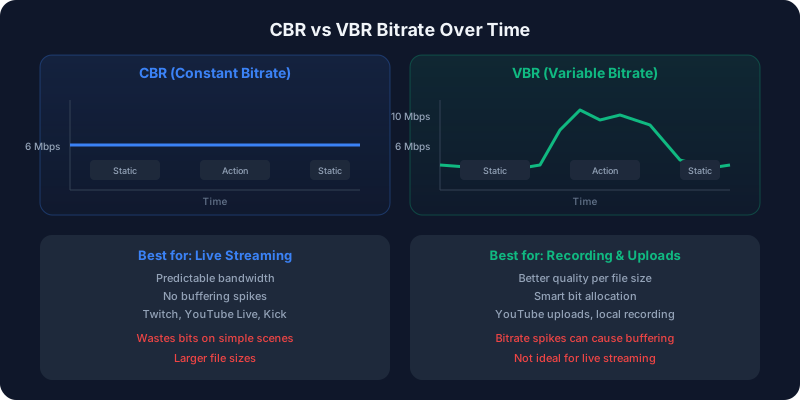
Should you use CBR or VBR for your stream or recording? It's one of the most common questions in OBS settings, and the wrong choice can ruin your video quality or cause buffering for viewers.
Quick Answer: CBR vs VBR
Use CBR for live streaming and VBR/CQP/CRF for recording or uploads. CBR keeps bitrate constant, which makes Twitch, YouTube Live, Kick, and OBS streams more stable. VBR changes bitrate based on scene complexity, which gives better quality per file size for local recordings, YouTube uploads, TikTok exports, and archived videos.| Use case | Best mode | Why |
| Twitch live streaming | CBR | Stable upload and lower buffering risk |
| YouTube Live streaming | CBR | Predictable ingest and transcoding |
| Kick streaming | CBR | RTMP stability |
| OBS local recording | CQP/CRF | Better quality without fixed bitrate waste |
| YouTube or TikTok upload | VBR or CRF | Smaller files with higher source quality |
| Editing/archive exports | VBR, CRF, or ProRes | Better quality control |
What Is CBR (Constant Bitrate)?
CBR encodes your video at a fixed data rate every second, regardless of what's happening on screen. Whether you're sitting in a lobby or in an intense firefight, the encoder uses the same amount of data.
- Simple scenes (static webcam, text): CBR wastes bandwidth encoding data that isn't needed
- Complex scenes (fast action, particles): CBR maintains consistent quality because the bitrate never drops
- Network predictability: Your upload usage is constant, making it ideal for live streaming
What Is VBR (Variable Bitrate)?
VBR dynamically adjusts the data rate based on scene complexity. Simple scenes get less data, complex scenes get more. This produces better overall quality for the same average file size.
- Simple scenes: VBR uses less data, saving file size
- Complex scenes: VBR allocates extra data to maintain quality
- File size efficiency: VBR produces smaller files than CBR at equivalent quality
CBR vs VBR: Side-by-Side Comparison
| Feature | CBR | VBR |
| Quality consistency | Constant | Varies (higher average) |
| File size | Larger | Smaller |
| Encoding speed | Faster | Slower |
| Best for streaming | Yes | No (usually) |
| Best for recording | No | Yes |
| Best for uploading | No | Yes |
| Network stability | Predictable | Fluctuates |
| Buffering risk | Low | Higher (spikes) |
When to Use CBR
Live Streaming (Twitch, YouTube Live, Kick)
Always use CBR for live streaming. Here's why:- Streaming platforms expect a consistent data rate. Bitrate spikes from VBR can cause buffering for viewers with slower connections.
- Twitch specifically recommends CBR and may throttle VBR streams.
- Your upload connection handles a steady load better than unpredictable spikes.
- RTMP (the protocol most platforms use) works best with constant bitrate.
Recommended CBR settings for streaming:
- Twitch 1080p 60fps: 6,000 Kbps CBR
- YouTube 1080p 60fps: 6,000–12,000 Kbps CBR
- Kick 1080p 60fps: 6,000–8,000 Kbps CBR
Use our Bandwidth Calculator to check if your upload speed supports your target bitrate.
For detailed OBS values, see our best OBS bitrate settings and OBS bitrate for 1080p 60fps guides.
Video Calls and Conferencing
Real-time communication benefits from CBR's predictable bandwidth usage. Most video calling software (Zoom, Discord) uses CBR internally.
When to Use VBR
Local Recording
Always use VBR for recordings saved to disk. Since there's no network to worry about, VBR's ability to allocate bits where they're needed produces noticeably better quality at smaller file sizes.In OBS, set the rate control to CQP (Constant Quantization Parameter) or CRF (Constant Rate Factor) — these are forms of VBR that target a quality level rather than a bitrate:
- CQP 18–20 (NVENC): High quality, reasonable file size
- CQP 15–17 (NVENC): Near-lossless, larger files
- CRF 18–22 (x264): Excellent quality for archiving
YouTube/TikTok Uploads
When exporting video for upload, VBR produces the best quality-to-size ratio. YouTube re-encodes everything anyway, so giving it the highest quality source file matters more than bitrate consistency. Use our Upload Time Calculator to estimate how long your VBR file will take to upload.
For YouTube containers and upload formats, see MP4 vs MKV vs MOV and best video format for YouTube.
Video Editing and Archiving
VBR keeps file sizes manageable for long recordings while maintaining quality during action-heavy moments. Check how much recording time your drive can hold with our Recording Time Calculator.
The Third Option: CQP/CRF (Quality-Based VBR)
Most professional workflows don't use CBR or traditional VBR — they use quality-targeted VBR, where you set a quality level and the encoder figures out the bitrate:
- CRF (x264/x265): Scale of 0–51. Lower = better quality. CRF 18 is visually lossless for most content.
- CQP (NVENC): Similar concept for NVIDIA GPU encoding. CQP 18–20 is the sweet spot.
- CQ (AMD AMF): AMD's equivalent. CQ 20 is a good starting point.
This approach is strictly better than fixed-bitrate VBR for recordings because the encoder adapts to your specific content automatically.
Common Mistakes to Avoid
Mistake 1: Using VBR for Streaming
VBR bitrate spikes can exceed your upload speed, causing dropped frames. Even if your average bitrate is fine, a 2-second spike to 15,000 Kbps on a 10 Mbps connection will cause problems.
Mistake 2: Using CBR for Recording
You're wasting disk space on simple scenes and potentially under-encoding complex scenes. There's no benefit to CBR when writing to a local drive.
Mistake 3: Setting VBR Max Bitrate Too High
If you use VBR for any reason, always set a max bitrate cap. For streaming, set it equal to your target bitrate. For recording, set it to 2–3x your target.
Mistake 4: Confusing Bitrate with Quality
A 6,000 Kbps CBR stream at 720p 30fps looks significantly better than 6,000 Kbps at 1080p 60fps. More pixels and frames need more data. Use our Bitrate Calculator to find the right bitrate for your resolution and frame rate.
Quick Decision Guide
- Streaming live? → Use CBR
- Recording locally? → Use CQP/CRF (quality-based VBR)
- Exporting for upload? → Use VBR or CRF
- Doing both simultaneously? → Set stream to CBR, recording to CQP (OBS supports separate encoding for each)
FAQ
Is CBR or VBR better for OBS?
Use CBR for OBS streaming and CQP/CRF for OBS recording. OBS lets you set separate stream and recording encoders, so you do not need one bitrate mode for both jobs.
Should I use CBR or VBR for Twitch?
Use CBR for Twitch. Twitch expects stable bitrate, and VBR spikes can cause dropped frames or buffering for viewers, especially when transcoding is not available.
Should I use CBR or VBR for YouTube?
Use CBR for YouTube Live and VBR/CRF for uploaded videos. Live streams need stable ingest; uploads benefit from better quality per file size.
Is VBR bad for streaming?
VBR is not bad quality, but it is risky for live streaming because bitrate spikes can exceed your upload speed. For live streaming, CBR is the safer choice.
What does CBR mean in bitrate settings?
CBR means Constant Bitrate. The encoder tries to use the same bitrate every second, even when the video scene is simple or complex. Learn the short definition in the CBR glossary.
What does VBR mean in bitrate settings?
VBR means Variable Bitrate. The encoder raises bitrate for complex scenes and lowers it for simple scenes. See the VBR glossary for the short definition.
Summary
CBR and VBR each have their place. The short version: CBR for streaming, VBR/CQP for everything else. Don't overthink it — pick the right mode for your use case, dial in your bitrate using our Streaming Bitrate Calculator, and focus on creating great content.