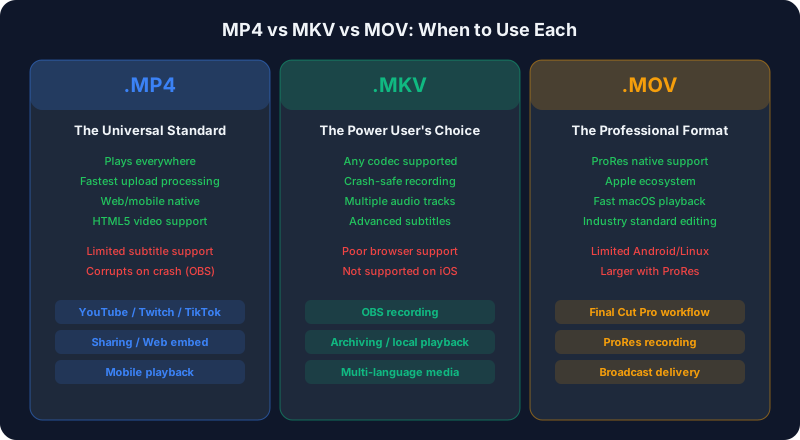
MP4, MKV, and MOV are not codecs — they're containers (file formats) that hold your video, audio, and metadata. Choosing the right container matters for compatibility, features, and workflow efficiency.
Quick Answer: MP4 vs MKV vs MOV
Use MP4 for uploads and sharing, MKV for safe OBS recording, and MOV for Apple or ProRes editing workflows. MP4 is the best default for YouTube, TikTok, Discord, websites, and mobile playback. MKV is safer while recording because it can survive crashes. MOV is best when you work in Final Cut Pro, ProRes, or Apple-heavy production pipelines.| Format | Best for | Avoid when |
| MP4 | YouTube uploads, web playback, sharing, mobile | You need crash-safe OBS recording |
| MKV | OBS recording, archives, multiple audio/subtitle tracks | You need browser/mobile compatibility |
| MOV | Final Cut, ProRes, Apple workflows | You need universal playback |
What Is a Video Container?
Think of a container as a box that holds:
- Video track (encoded with H.264, HEVC, AV1, etc.)
- Audio track(s) (AAC, Opus, FLAC, etc.)
- Subtitles (SRT, ASS, etc.)
- Metadata (title, chapters, timestamps)
The container doesn't affect video quality — that's determined by the codec. But it affects what codecs and features are supported, and how widely compatible your file is.
Container Comparison
| Feature | MP4 (.mp4) | MKV (.mkv) | MOV (.mov) |
| Developer | MPEG/ISO | Matroska | Apple |
| Video codecs | H.264, HEVC, AV1 | Almost any | H.264, HEVC, ProRes |
| Audio codecs | AAC, MP3, AC3 | Almost any | AAC, ALAC, PCM |
| Subtitle support | Limited | Excellent | Limited |
| Multiple audio tracks | Limited | Unlimited | Multiple |
| Chapter support | Yes | Yes | Yes |
| Streaming support | Excellent | Poor | Good |
| Browser playback | Universal | Limited | Safari only |
| File size overhead | Minimal | Minimal | Minimal |
| Platform support | Universal | Desktop only | Apple + Adobe |
MP4 — The Universal Standard
MP4 (.mp4, also known as MPEG-4 Part 14) is the most widely supported video container in the world.
Best for:- YouTube, Twitch, TikTok, Instagram uploads
- Web playback (HTML5 video)
- Sharing files with anyone
- Mobile devices
- Plays on literally every device and platform
- Fast streaming with `faststart` moov atom
- Supported by all editing software
- Smallest container overhead
- Limited subtitle format support (no ASS/SSA styling)
- Can't hold as many codec types as MKV
- Limited to a few audio track formats
YouTube Recommended Container: MP4 with the Moov Atom First
For YouTube uploads, the safest container is MP4 with H.264 video, AAC audio, and the moov atom at the front of the file. The moov atom is MP4 metadata that tells players where the video and audio data lives. If it is at the end of a large file, playback and processing can start slower.
Most editing apps handle this automatically when exporting for web or YouTube. In FFmpeg, the equivalent setting is `-movflags +faststart`:
`ffmpeg -i input.mov -c copy -movflags +faststart output.mp4`
Use this when you remux or prepare MP4 files for upload. It does not re-encode the video, so there is no quality loss. For broader upload settings, see our best video format for YouTube guide.
MKV — The Feature-Rich Container
MKV (.mkv, Matroska) is an open-source container that supports virtually any codec and feature.
Best for:- Archiving video with multiple audio/subtitle tracks
- Anime and media collections (multiple language tracks)
- Local playback with VLC or MPV
- Storing any codec combination
- Supports almost every video and audio codec ever made
- Unlimited audio, subtitle, and attachment tracks
- Advanced subtitle support (ASS/SSA with styling)
- Open-source, no licensing issues
- Chapter and tag support
- Not supported by most web browsers
- Poor streaming platform support (YouTube accepts it but MP4 is preferred)
- Some editing software (especially on mobile) can't open MKV
- Not supported natively on iOS
MOV — Apple's Professional Format
MOV (.mov, QuickTime) is Apple's container format, widely used in professional video production.
Best for:- Final Cut Pro workflows
- Apple ecosystem (macOS, iOS)
- ProRes recording and editing
- Professional broadcast delivery
- Native to Apple's ecosystem (fast scrubbing in Finder/QuickTime)
- Supports ProRes, which is the industry standard for editing
- Good metadata support
- Adobe Premiere imports MOV natively
- Larger files in some configurations (especially with ProRes)
- Limited support on Android and Linux
- Some web platforms process MOV slower than MP4
- Essentially equivalent to MP4 technically (both are ISO base media format)
Which Container for Which Task?
| Task | Best Container | Why |
| YouTube upload | MP4 | Fastest processing, recommended by YouTube |
| Twitch/Kick VOD | MP4 | Universal support |
| OBS recording | MKV (then remux) | Crash-safe, remux to MP4 after |
| Editing project | MOV (ProRes) or MP4 | Depends on your NLE |
| Archiving | MKV | Supports everything, future-proof |
| Sharing on Discord | MP4 | Embeds and plays inline |
| Mobile playback | MP4 | Works on iOS and Android |
| Web embedding | MP4 | HTML5 video standard |
OBS Recording: Why MKV, Then Remux?
OBS recommends recording to MKV instead of MP4. Here's why:
If OBS crashes or you force-close it while recording to MP4, the entire file is corrupted and unrecoverable. This is because MP4 writes critical metadata (the "moov atom") at the end of the file.
MKV doesn't have this problem — it writes metadata continuously, so a crash only loses the last few seconds.
The workflow:1. Record in OBS to MKV format
2. After recording, use OBS's built-in remux: File → Remux Recordings
3. This converts MKV → MP4 instantly (no re-encoding, no quality loss)
4. Upload the MP4
This gives you crash safety during recording and universal compatibility for sharing.
For OBS bitrate and rate control choices, see CBR vs VBR and OBS recording settings.
Does the Container Affect File Size?
No, not meaningfully. Container overhead is typically a few kilobytes, regardless of file length. A 10 GB video will be ~10 GB whether it's MP4, MKV, or MOV.The file size is determined by your codec, bitrate, resolution, and duration — not the container. Use our Bitrate Calculator to estimate file sizes for your specific settings.
Converting Between Containers
Switching containers without re-encoding is called remuxing — it's nearly instant and has zero quality loss:
FFmpeg remux examples:- MKV to MP4: `ffmpeg -i input.mkv -c copy output.mp4`
- MOV to MP4: `ffmpeg -i input.mov -c copy output.mp4`
- MP4 to MKV: `ffmpeg -i input.mp4 -c copy output.mkv`
The `-c copy` flag means "copy streams without re-encoding." The process takes seconds regardless of file size.
Note: Remuxing only works if the codecs inside the source container are compatible with the target container. For example, you can't remux a MKV with FLAC audio to MP4 (MP4 doesn't support FLAC). In that case, you'd need to re-encode the audio.Summary
- MP4 for uploading, sharing, and streaming — it works everywhere
- MKV for recording (crash-safe) and archiving (supports everything)
- MOV for Apple/ProRes professional workflows
For most creators: record in MKV, remux to MP4 for upload. It's the safest and most compatible workflow.
Calculate your expected file sizes at any resolution with our Streaming Bitrate Calculator.
FAQ
Is MKV or MOV better?
MKV is better for archiving, OBS recording, and files with multiple audio or subtitle tracks. MOV is better for Apple, Final Cut Pro, and ProRes editing workflows.
Should I record OBS in MKV or MP4?
Record OBS in MKV, then remux to MP4 after recording. MKV is crash-safe; MP4 is better for uploading and sharing.
What format does YouTube recommend?
Use MP4 with H.264 video and AAC audio. For faster web playback and processing, export or remux the MP4 with the moov atom at the front of the file.