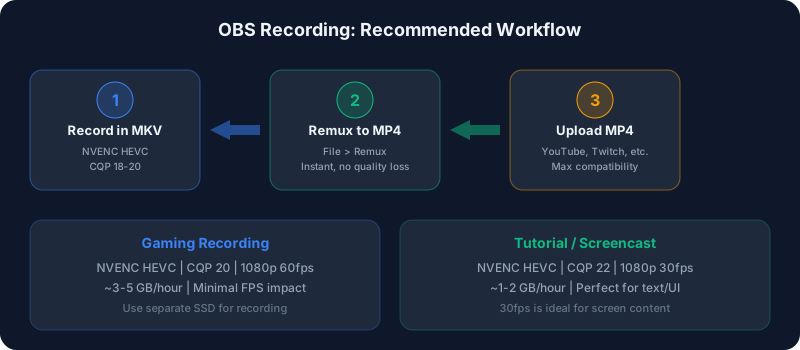
OBS recording settings are completely different from streaming settings. When streaming, you're limited by upload speed and platform bitrate caps. When recording, your only limits are disk space and hardware power — so you can (and should) aim much higher.
This guide covers the optimal OBS recording settings for every use case in 2026. If you also need stream bitrate, encoder, and platform settings, start with the OBS settings hub.
The Most Important Setting: Separate Recording from Streaming
In OBS, go to Settings → Output → Output Mode: Advanced. This unlocks separate tabs for "Streaming" and "Recording" — letting you use completely different encoders, bitrates, and formats for each.
Never use "Simple" output mode if you care about recording quality. Advanced mode is essential.Recommended Recording Settings
For Gaming (High Quality)
| Setting | Value |
| Container | MKV (remux to MP4 after) |
| Encoder | NVENC HEVC (or x265 if no NVIDIA GPU) |
| Rate Control | CQP |
| CQP Value | 18–20 |
| Preset | P5 (Slow) or P6 |
| Profile | Main |
| Resolution | 1080p or 1440p (match your monitor) |
| FPS | 60 |
For Tutorials/Screencasts
| Setting | Value |
| Container | MKV |
| Encoder | NVENC HEVC or x264 |
| Rate Control | CQP |
| CQP Value | 20–22 |
| Preset | P5 |
| Resolution | 1080p |
| FPS | 30 |
For Maximum Quality (Archival)
| Setting | Value |
| Container | MKV |
| Encoder | x265 (CPU) or NVENC HEVC |
| Rate Control | CQP/CRF |
| CQP/CRF Value | 15–17 |
| Preset | Slow (x265) or P7 (NVENC) |
| Resolution | Native (match source) |
| FPS | 60 |
Encoder Selection
NVENC HEVC (Recommended for Most Users)
If you have an NVIDIA GTX 1650+ or any RTX card, NVENC HEVC is the best choice:
- Near-zero performance impact on gaming
- Excellent quality with CQP 18-20
- HEVC produces ~40% smaller files than H.264
- RTX 40-series NVENC rivals x265 medium quality
NVENC AV1 (Best Quality per File Size)
Available on RTX 40-series and newer:
- ~50% smaller files than H.264 at same quality
- Zero performance impact
- Perfect for creators with compatible hardware
- Use CQP 18-20, same as HEVC
x265 (Best Quality, CPU-Intensive)
If you have a powerful CPU (8+ cores) and don't need real-time performance:
- Best quality per bitrate of any encoder
- CRF 18-20 with "medium" or "slow" preset
- Significant CPU usage — may affect gaming performance
- Best used for re-encoding recordings after the fact
x264 (Legacy, Still Good)
Still a solid choice if HEVC isn't available:
- CRF 18-20 with "veryfast" preset for real-time recording
- Higher quality presets (medium, slow) for post-recording re-encoding
- Files will be ~40% larger than HEVC at same quality
Understanding CQP vs CRF vs CBR for Recording
CQP (Constant Quantization Parameter)
Used by GPU encoders (NVENC, AMF, QSV). You set a quality level, and the encoder adjusts bitrate per frame. This is the best choice for NVENC recording.
CRF (Constant Rate Factor)
Used by CPU encoders (x264, x265). Same concept as CQP — quality-targeted variable bitrate. This is the best choice for CPU recording.
CBR (Constant Bitrate)
Don't use CBR for recording. It wastes space on simple scenes and may under-encode complex scenes. CBR is only appropriate for live streaming.For a complete explanation, read our CBR vs VBR guide.
Quality Level Guide
| CQP/CRF | Quality | Use Case |
| 14–16 | Near-lossless | Archival, source material |
| 18 | Excellent | YouTube/content creation |
| 20 | Very good | Gaming recordings |
| 22 | Good | Screencasts, tutorials |
| 24 | Acceptable | Quick recordings, drafts |
Resolution and Scaling
Recording at Native Resolution
Always record at your monitor's native resolution when possible:
- Playing at 1080p? Record at 1080p
- Playing at 1440p? Record at 1440p
- Playing at 4K? Record at 4K (if storage allows)
Downscaling for File Size
If storage is a concern, downscale in OBS:
- 4K → 1440p: Saves ~45% space, minimal quality loss
- 1440p → 1080p: Saves ~55% space, still looks great on YouTube
- Use Lanczos scaling filter (sharpest downscale quality)
Compare file sizes at different resolutions with our Bitrate Calculator.
Audio Settings for Recording
| Setting | Recommended Value |
| Sample Rate | 48 kHz |
| Audio Bitrate | 160–320 Kbps |
| Audio Encoder | AAC |
| Channels | Stereo |
1. Settings → Output → Recording → Audio Tracks: check tracks 1, 2, 3
2. Edit → Advanced Audio Properties → assign sources to different tracks
3. Track 1: All audio (for quick playback), Track 2: Game only, Track 3: Mic only
MKV container supports multiple audio tracks natively — another reason to record in MKV.
File Format: Why MKV First, Then Remux
Always record to MKV in OBS, then remux to MP4 afterward. Why?- Crash safety: If OBS crashes during MP4 recording, the entire file is lost. MKV recovers everything up to the crash point.
- Remuxing is instant: File → Remux Recordings in OBS. No re-encoding, no quality loss, takes seconds.
- Multiple audio tracks: MKV handles multiple tracks better during recording.
Read our full MP4 vs MKV vs MOV comparison for more details.
Storage Planning
Recording eats disk space fast. Here are typical file sizes per hour:
| Settings | ~Size/Hour |
| 1080p 60fps HEVC CQP 20 | 3–5 GB |
| 1080p 60fps HEVC CQP 18 | 5–8 GB |
| 1440p 60fps HEVC CQP 20 | 6–10 GB |
| 4K 60fps HEVC CQP 20 | 15–25 GB |
| 1080p 60fps H.264 CRF 18 | 8–12 GB |
Performance Tips
Recording While Gaming
- Use NVENC (GPU encoder) to avoid CPU overhead
- Set OBS process priority to "Normal" (not High)
- Record to a separate drive from your game (avoids I/O bottleneck)
- Close unnecessary background apps
Recording While Streaming
- Use the "Recording" tab in Advanced Output to set separate encoder settings
- Stream: CBR 6,000 Kbps H.264 (for Twitch)
- Record: CQP 20 HEVC (for high-quality local copy)
- This gives you a much higher quality recording than your stream
Quick Setup Checklist
1. Output Mode → Advanced
2. Recording tab → Encoder: NVENC HEVC (or best available)
3. Rate Control → CQP
4. CQP Level → 20 (adjust to taste)
5. Recording Format → MKV
6. Recording Path → Separate SSD
7. Resolution → Match your display
8. FPS → 60 (30 for screencasts)
9. Audio → 48 kHz, 160 Kbps AAC, separate tracks
10. After recording → Remux to MP4 via File menu
For streaming-specific settings, see our OBS Bitrate Settings Guide.